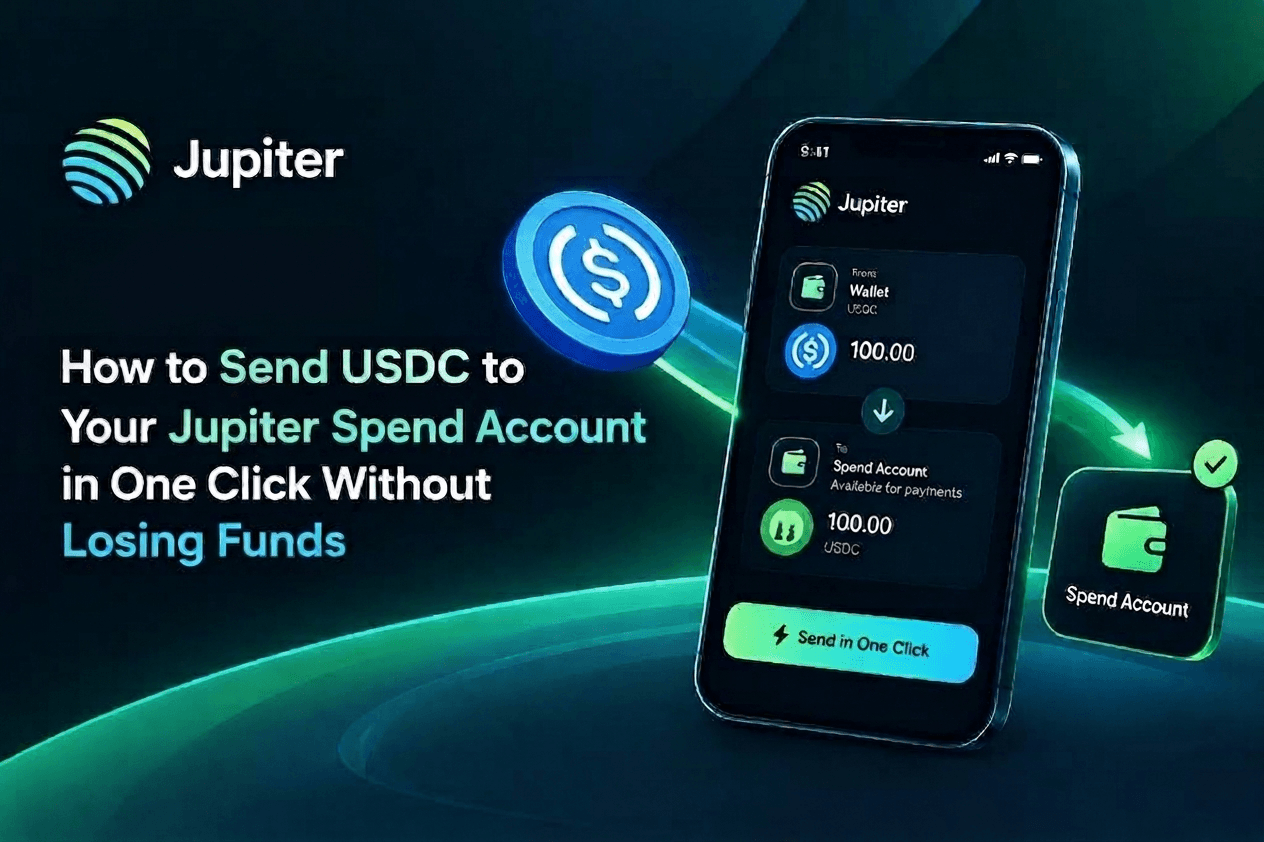
Jupiter Mobile's "Send to Spend" route lets you move assets from your Jupiter wallet into your Jupiter Spend Account without copying a deposit address or leaving the app. USDC and USDT can move directly, while other tokens held in the wallet are converted into USDC through Jupiter Ultra before the Spend balance is credited in U.S. dollars.
Summary
- Open Jupiter Mobile and choose Send.
- Select Send to Spend, not Send to address.
- Choose the token and amount. USDC and USDT transfer without a swap; other wallet tokens are converted into USDC through Jupiter Ultra.
- Review the conversion details and confirm the transaction.
- Never send a non-USDC or non-USDT asset directly to a Spend deposit address. Jupiter says those transfers cannot be recovered.
How do you send USDC to a Jupiter Spend Account?
Use the in-app path Send → Send to Spend, choose USDC and the amount, review the transaction, and confirm it. The feature selects the Spend destination automatically.
Step-by-Step Guide
- Open Jupiter Mobile and go to Send. Open the Jupiter Mobile app, then tap Send from the Home or Portfolio tab.
- Select Send to Spend. Choose Send to Spend from the Send options. This is different from sending to a normal Solana address.
- Pick any supported token. Select the asset and amount. USDC or USDT is transferred without a conversion. Other tokens held in the Jupiter Mobile wallet are auto-converted into USDC through Jupiter Ultra.
- Confirm the transaction. Check the asset, estimated amount, minimum amount received and price impact where shown, then approve the transaction.
Featured-snippet answer: To fund Jupiter Spend, open Jupiter Mobile, tap Send, select Send to Spend, choose a token and amount, then confirm the transaction. Jupiter automatically routes the funds to the Spend Account and converts non-USDC assets into USDC through Jupiter Ultra.
What happens to your token after you confirm?
USDC and USDT move as stablecoin transfers, while other supported wallet assets are swapped into USDC before delivery. The resulting Spend balance is denominated in USD.
The route is designed for assets already held in Jupiter Mobile. Jupiter's documentation says the flow accepts any token in the wallet, but the treatment depends on the asset:
- USDC or USDT: transferred without a swap or slippage.
- Other wallet tokens: swapped into USDC through Jupiter Ultra in the same transaction.
- Spend credit: the deposit is credited in USD after the funds reach the Spend Account.
For non-stablecoin assets, Jupiter says the mobile swap fee is 0.1% for SOL, liquid-staking tokens and blue-chip assets, and 0.2% for most other tokens. A small Solana network fee can also apply. Jupiter Mobile does not charge a protocol fee for sending tokens, but a token swap is a separate cost from the network transaction.
Which Jupiter funding method should you use?
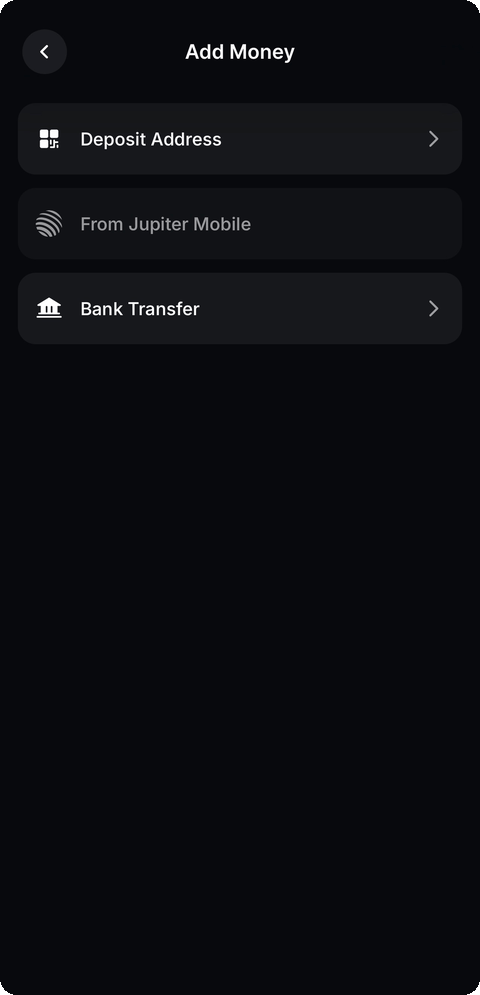
Use Send to Spend when the funds are already in Jupiter Mobile. Use the deposit address only when the funds are coming from elsewhere, and send only the assets and networks Jupiter lists for that address.
| Funding method | Best use | What it accepts | Main risk or cost |
|---|---|---|---|
| Send to Spend | Funding from a Jupiter Mobile wallet | Any token held in the wallet; non-USDC assets are converted to USDC | Swap fee may apply to non-stablecoin assets, plus a small Solana network fee |
| Spend deposit address | Funding from another wallet or exchange | USDC on Solana, Sui, Arbitrum or Base; USDT on Solana | Sending another asset can result in an unrecoverable transfer |
| Send to address | Sending tokens to another Solana address | The token and recipient selected by the sender | It does not automatically fund the Spend Account |
Safety rule: Do not paste the Spend deposit address when you are trying to move SOL, JUP or another non-USDC asset from Jupiter Mobile. Return to the app's Send menu and use Send to Spend so the conversion happens before the funds are credited.
Why can sending the wrong token lose your funds?
Jupiter says the separate Spend deposit address is not a general-purpose wallet address. It accepts only the listed stablecoins and networks; a different token sent there is not credited and cannot be reversed or recovered.
This is the key distinction between an ordinary on-chain transfer and the Send to Spend flow. "Send to Spend knows that the destination is a Spend Account and can convert a non-stablecoin asset from the Jupiter Mobile wallet". A direct deposit from an external wallet does not provide that conversion step.
- Confirm whether your funds are inside Jupiter Mobile or elsewhere.
- If they are inside Jupiter Mobile, use Send → Send to Spend.
- If they are elsewhere, verify the exact token and network shown in the Spend deposit screen before sending.
- Do not assume that a token supported in Jupiter Mobile is also accepted by the Spend deposit address.
What do you need before using Send to Spend?
You need a Jupiter Spend Account with a Jupiter ID and completed identity verification. The route is for funding Spend, not for sending tokens to an arbitrary recipient.
Jupiter describes Spend as a regulated financial-services layer in its app. Its documentation says identity verification is required before accessing Spend features, and verification is handled by SumSub. Availability of the Jupiter Card, QR Pay and other Spend services depends on the user's country or region.
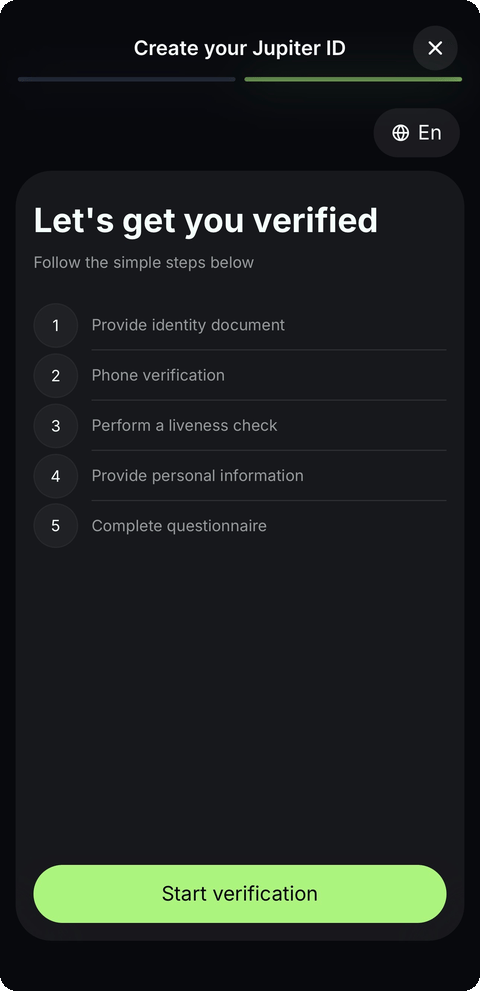
Before you start: Complete the Jupiter ID verification flow and make sure the wallet you are funding from is the wallet connected to the Jupiter Mobile Send menu.
Where can you spend the credited balance?
The USD balance can fund Jupiter Spend products such as the Jupiter Card and QR Pay where those services are available.
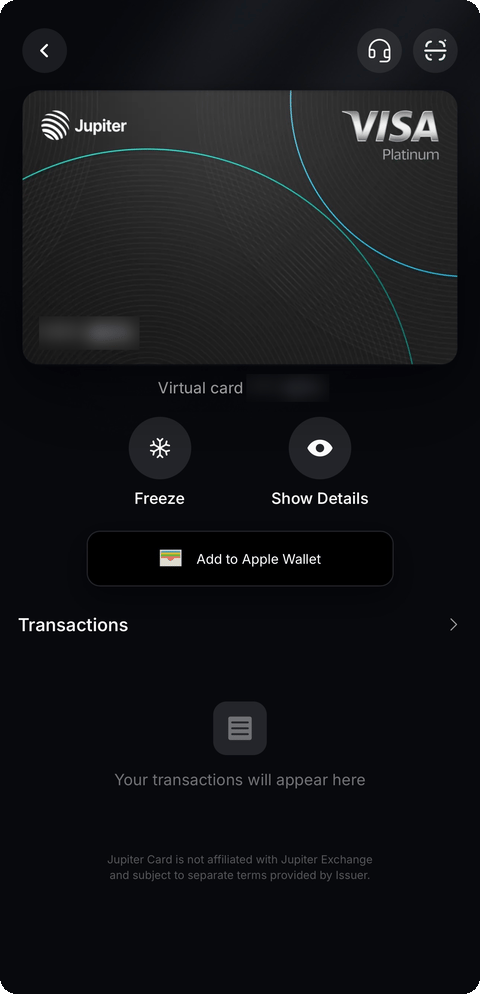
The Jupiter Card documentation describes the card as a Visa debit card that spends the user's deposited balance as USD. It does not provide a credit line. The virtual card is available through the Jupiter app, while physical cards are being rolled out in phases.
What should you check before pressing confirm?
Check the route, token, amount and conversion summary. A final review is the simplest way to prevent an incorrect transfer or an unexpected swap outcome.
- Route: It should say Send to Spend, not Send to address.
- Token: Confirm that the selected asset is the one you intend to spend or convert.
- Amount: Review the amount being sent and the estimated USD credit.
- Conversion: For non-USDC assets, review the estimated amount, minimum received and price impact.
- Fees: Account for any applicable Jupiter Ultra swap fee and Solana network fee.
Frequently Asked Questions (FAQs)
Q: Is Send to Spend the same as sending USDC to a wallet address?
A: No. Send to Spend is an in-app route that selects the Spend destination automatically. A direct transfer to the Spend deposit address is a separate method with stricter token and network requirements.
Q: Can I use SOL or another token to fund Jupiter Spend?
A: Yes, when the asset is held in Jupiter Mobile and you use Send to Spend. Jupiter says non-USDC and non-USDT assets are swapped into USDC through Jupiter Ultra before delivery.
Q: Can I send SOL directly to my Spend deposit address?
A: No. Jupiter says the Spend deposit address accepts USDC on supported networks and USDT on Solana. Sending another token there can result in a permanent loss.
Q: Does Jupiter charge a fee for Send to Spend?
A: Jupiter Mobile says it does not charge a protocol fee for sending tokens. If a non-stablecoin token is converted through Jupiter Ultra, the applicable swap fee and a small Solana network fee can apply.
Q: Do I need identity verification?
A: Yes. Jupiter's Spend documentation says a Jupiter ID and completed identity verification are required to access Spend features.
What should you do next?
If your funds are already in Jupiter Mobile
- Use the four-step Send to Spend flow rather than copying a deposit address.
- If your funds are in another wallet or exchange, verify the exact stablecoin and network before sending.
Disclaimer: Not Financial Advice. All content is for educational purposes only. Cryptocurrency investing involves high risk and extreme volatility. Do your own research (DYOR). The author is not liable for any financial losses.